How to Create Variations (Attributes)
Learn how to create attributes such as color and size in IHASHOP, add variation values, and complete marketplace mappings correctly.
Before using product options such as color, size, shoe size, or volume as variations in IHASHOP, you need to create the relevant attributes and their associated values.
1. Open the Attributes page
After logging in to the IHASHOP administration panel, follow this path in the left-hand menu:
Catalog Management > Attributes
You can also access the page directly using the following address:
https://yourwebsite.com/secure/attributes
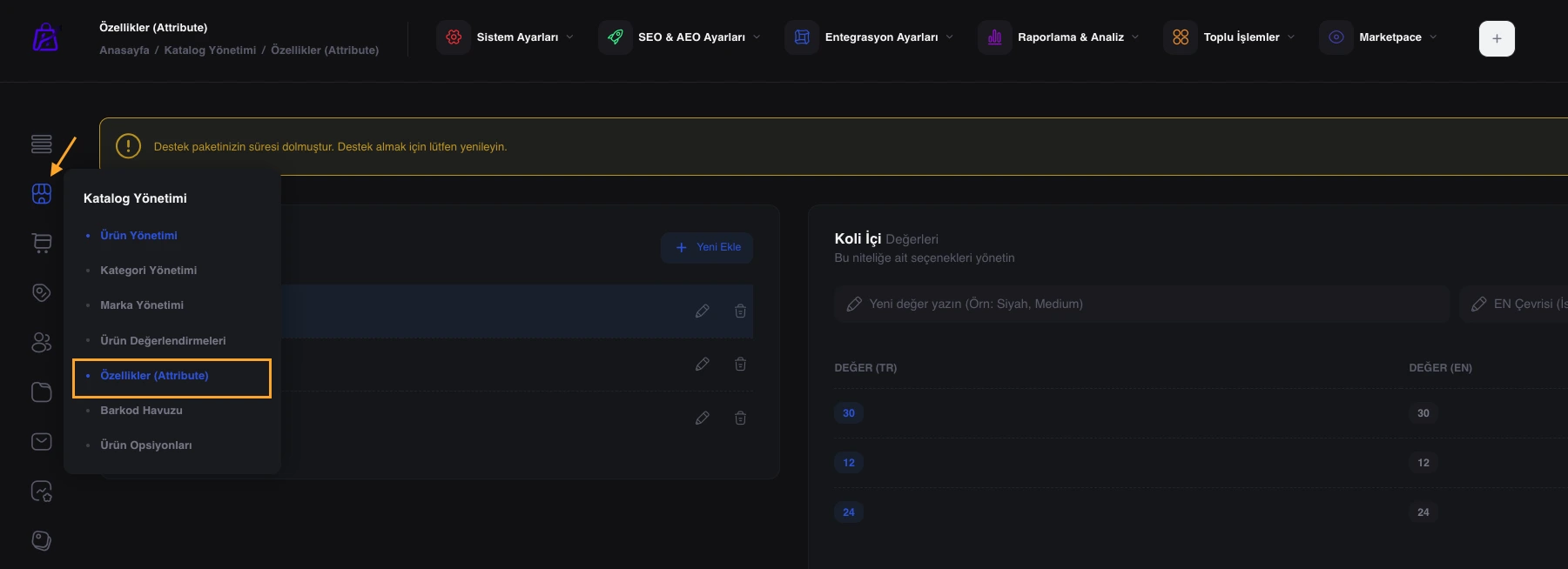
Replace yourwebsite.com with your store’s domain name.
2. Create a new attribute
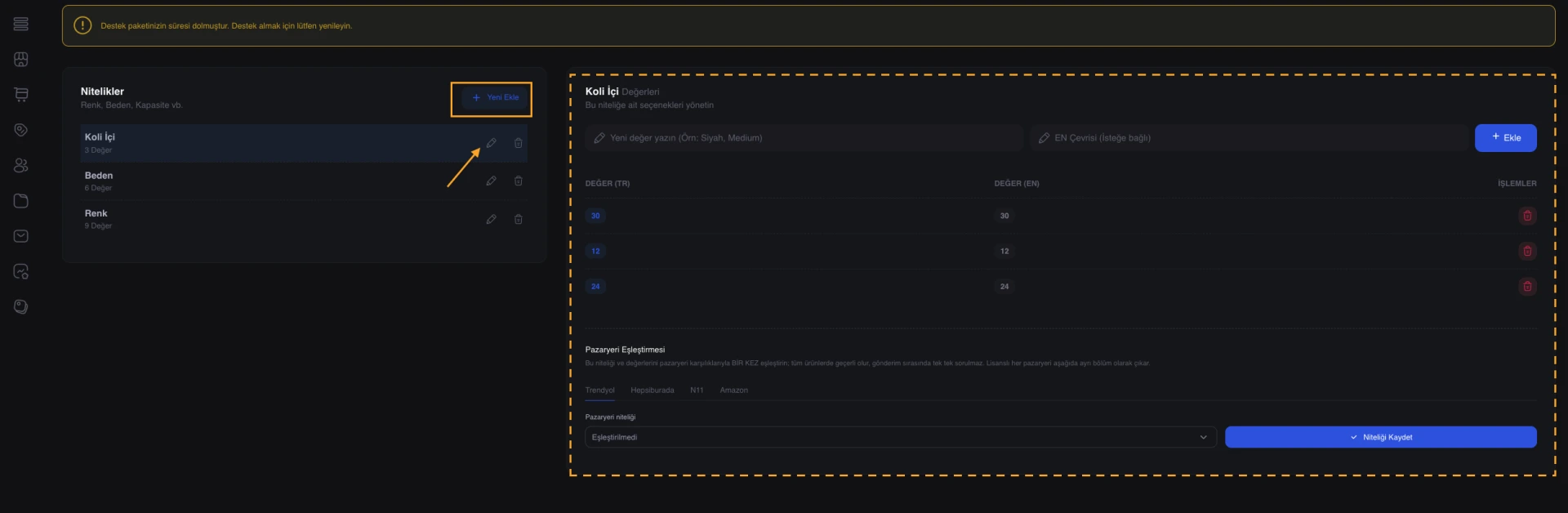
On the page that opens, select Attributes > Add New.
Enter the Turkish and English names of the attribute in the relevant fields.
For example:
- Turkish: Renk
- English: Color
Another example:
- Turkish: Beden
- English: Size
Save the attribute after entering the required information.
3. Open the attribute editor
The saved attribute will appear in the attribute list. Click the Edit button or the pencil icon next to the relevant attribute.
The editing page allows you to add variation values associated with the selected attribute.
4. Add variation values
Use the variation section on the right side of the editing page to add values to the attribute.
For example, you can add the following values to the Color attribute:
- Black
- White
- Red
- Blue
For the Size attribute, you can add:
- XS
- S
- M
- L
- XL
Save each value after entering it. These values can then be selected while creating or editing variable products.
5. Complete marketplace mapping
If your store actively uses Trendyol, Hepsiburada, Amazon, n11, or another marketplace integration, map the attributes and variation values to their marketplace equivalents at this stage.
Without marketplace mapping, errors involving category attributes, colors, sizes, or variation values may occur when products are transferred to a marketplace.
For stores using marketplace integrations, the Marketplace Mapping step must not be skipped.
Important note
Standardize attribute names and variation values before adding them to products. For example, avoid creating separate values such as “Black”, “black”, and “BLACK” for the same color. Using a single standardized value improves product management, filtering, and marketplace synchronization.