How to Set Up and Enable Two-Factor Authentication (2FA)
Add an extra layer of security to your IHASHOP admin account by enabling two-factor authentication (2FA). Pair with an Authenticator app via QR code, enter the 6-digit verification code, and secure your recovery codes.
Admin accounts provide direct access to critical business operations, including customer data, order details, financial records, and core store settings. Relying solely on a password may not be sufficient to protect your business from unauthorised access.
The Two-Factor Authentication (2FA) feature in IHASHOP E-Commerce Software adds an essential layer of security to your admin account. Once enabled, logging in requires both your password and a temporary 6-digit verification code generated by your mobile authenticator app.
The IHASHOP 2FA infrastructure is compatible with the following authenticator tools:
- Google Authenticator
- Microsoft Authenticator
- Authy
- Other authenticator apps that support TOTP
Follow the steps below to complete the setup and secure your admin account.
1. Access Your Security Settings
Log in to your IHASHOP admin panel.
Click your profile picture or username in the top-right corner and select My Profile from the menu.
Open the Security tab on the profile page.
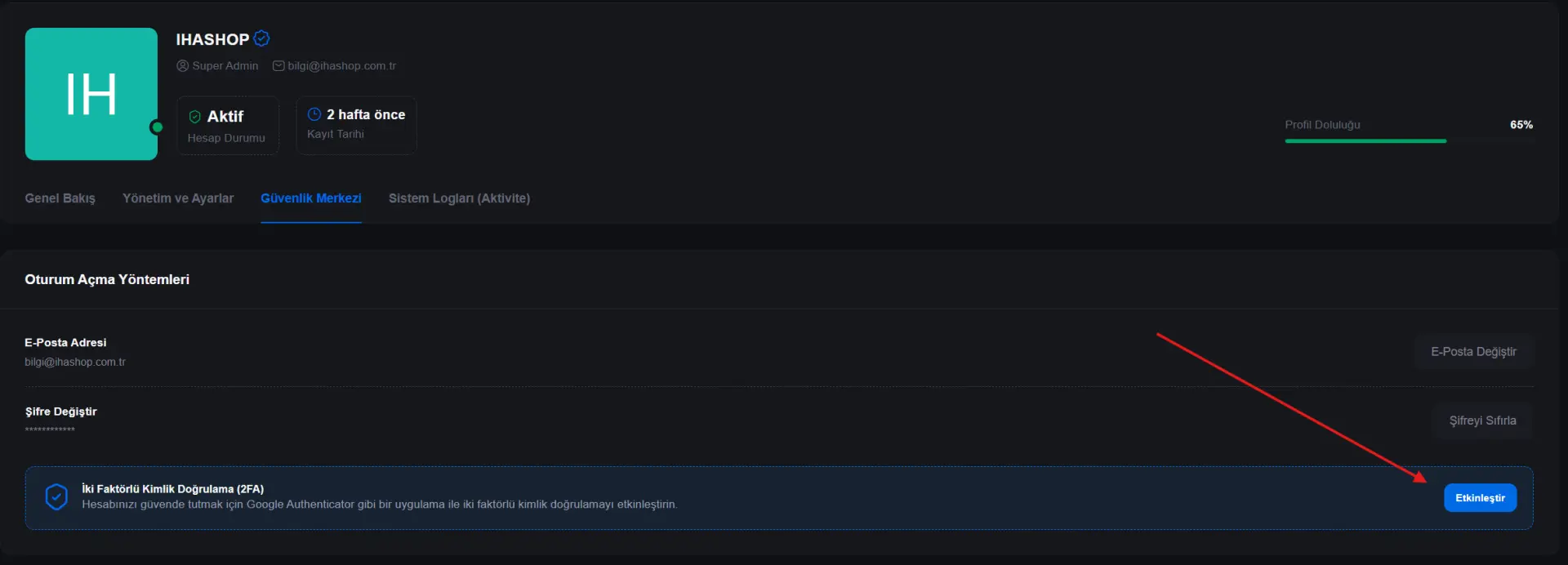
2. Start the 2FA Setup
Locate the Two-Factor Authentication section and click Enable.
The system generates the following account-specific credentials:
- A unique QR code
- A setup key
- A secret key for manual configuration
These credentials are used only to pair your account with the authenticator app. Never share your QR code or setup key with anyone.
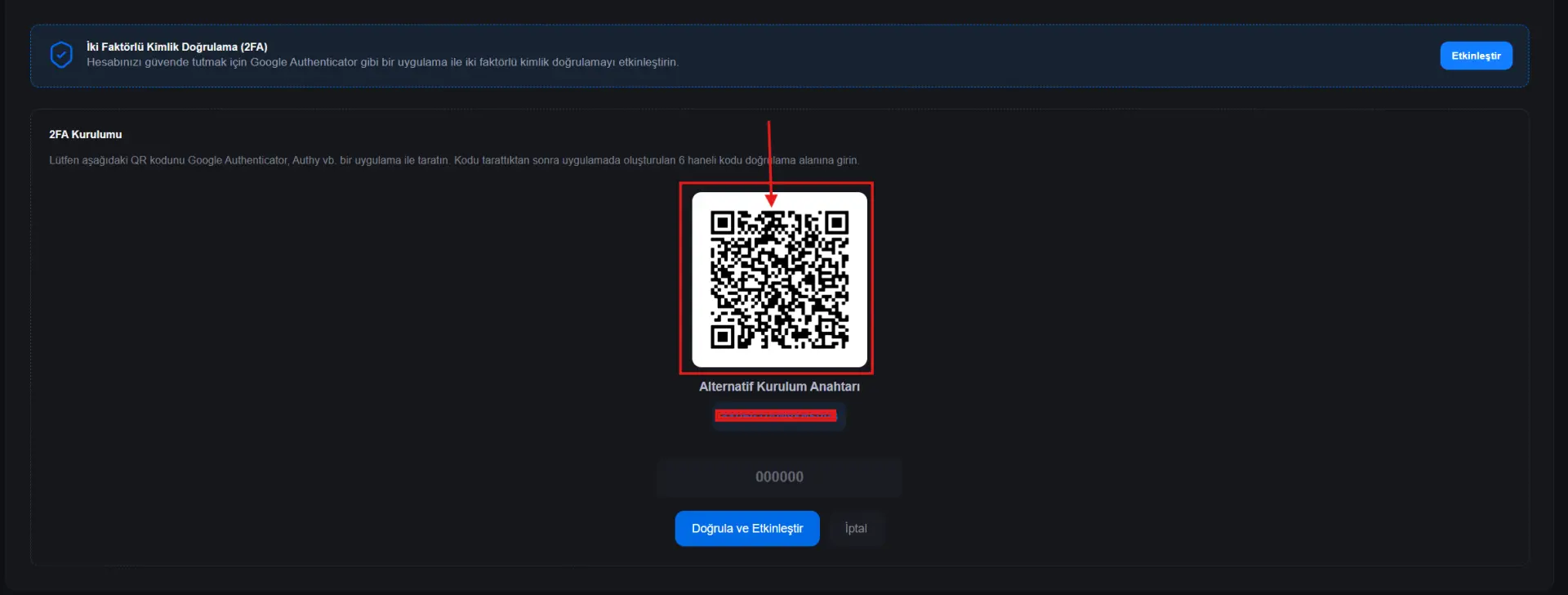
3. Pair Your Mobile Authenticator App
Install and open your preferred authenticator app on your smartphone.
Tap the + icon, Add Account, or the equivalent option in the app.
Select Scan QR Code and scan the code displayed on the IHASHOP setup screen.
If your camera is unavailable or cannot scan the code, select Enter Setup Key and manually enter the key displayed by IHASHOP.
After pairing, the app begins generating temporary verification codes for your IHASHOP admin account.
4. Enter the Verification Code
Your authenticator app generates a time-sensitive 6-digit security code.
Example code: 123456
Enter the current code in the verification field on the IHASHOP screen and click Verify and Enable.
After successful verification, two-factor authentication becomes active.
For future admin-panel logins, you will be asked for:
- Your email address or username
- Your account password
- The current 6-digit code from your authenticator app
Store Your Recovery Codes Securely
After activation, the system generates 8 single-use recovery codes.
Example recovery code: Abc123xyz0-Def456tuv9
Recovery codes let you access your account when you cannot use the authenticator app.
You may need them in the following situations:
- Losing your phone
- Device malfunction or hardware failure
- Deleting the authenticator app
- Moving to a new mobile device
- Losing access to your authenticator account
Save the codes in a secure password manager or keep a printed copy in a physical location accessible only to you.
After saving them, click I Have Saved Them to complete the process.
What Should I Do If I Lose or Use All Recovery Codes?
If you still have access to your account, open My Profile → Security.
Use View Recovery Codes to review the remaining codes.
To create a new set, click Regenerate Codes. The system invalidates the old codes and creates 8 new single-use recovery codes.
Store the new codes securely as soon as they are generated.
How to Disable Two-Factor Authentication
To turn off 2FA, open My Profile → Security → Two-Factor Authentication.
Click Disable.
The pairing between your account and authenticator app is removed. To use 2FA again later, you must repeat the complete setup, including QR-code pairing.
Security Best Practices
- Enable 2FA for all high-level administrator accounts.
- Never share QR codes, setup keys, or recovery codes.
- Keep recovery codes in a secure location.
- Do not attempt to reuse a single-use recovery code.
- Before changing phones, confirm authenticator access on the new device.
- If you notice suspicious sign-in activity, change your password and terminate active sessions.
- Create a separate account for every team member instead of sharing administrator credentials.
Two-factor authentication significantly reduces the risk of unauthorised access even if your password is compromised. We strongly recommend keeping 2FA enabled for Super Admin, store-owner, and financial-management accounts.